
HubSpot
Overview
This guide walks you through configuring the Modica SMS integration within HubSpot, including event triggers, action setup, and error handling best practices.
Requirements before you begin:
- You will need an Active HubSpot account that supports workflow automation and workflow extensions.
The minimum recommended package is:
Marketing Hub Professional (or Enterprise)
Plus the Marketing SMS add-on if using HubSpot-native SMS workflows
-
An active Modica account
-
Your Modica API application name and password
Modica SMS Messaging integrates your Modica platform with HubSpot, allowing your team to send SMS messages directly from within HubSpot without switching between platforms. Once connected, you can:
-
Send SMS messages to any contact directly from their HubSpot Contact record using the Send SMS card in the right sidebar
-
Automate SMS sending as part of HubSpot Workflows using the Send SMS via Modica workflow action
-
Manage your Modica API credentials securely within the app Settings
Quick Setup & Authentication
Install from HubSpot Marketplace
-
Navigate to App Marketplace in your HubSpot account
-
Search for “Modica SMS”
-
Click Install App
-
You will be prompted to choose the HubSpot account you want to connect. Select your account and click Choose Account.
-
Review the permissions the app is requesting:
-
View properties and other details about contacts
-
Basic OAuth functionality Click Connect app to approve the connection.
-
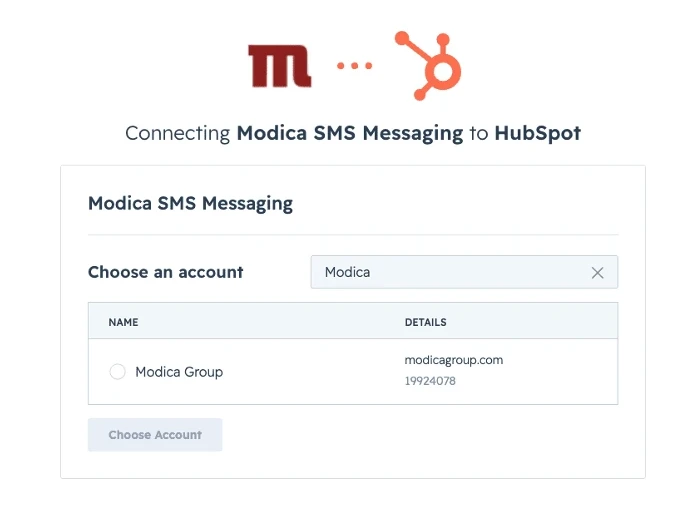
You will be redirected back to your HubSpot account with the app installed. You can verify the installation by going to Settings → Integrations → Connected Apps where Modica SMS Messaging will now appear.
Configure your Modica Credentials
Before you can send SMS messages, you need to enter your Modica API credentials. This is done once per HubSpot account.
-
Go to Settings → Integrations → Connected Apps.
-
Click on Modica SMS Messaging.
-
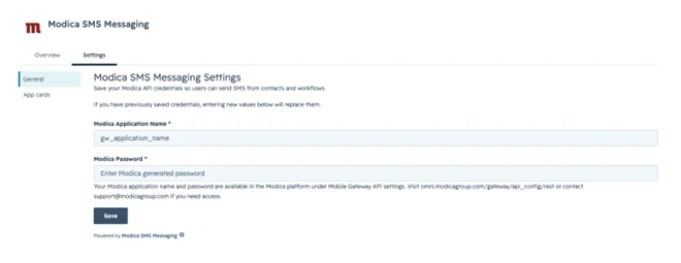
Click the Settings tab.
-
Enter your Modica credentials:
-
Modica Application Name - this is your Modica REST API application name
-
Modica Password - this is your Modica REST API application password
-
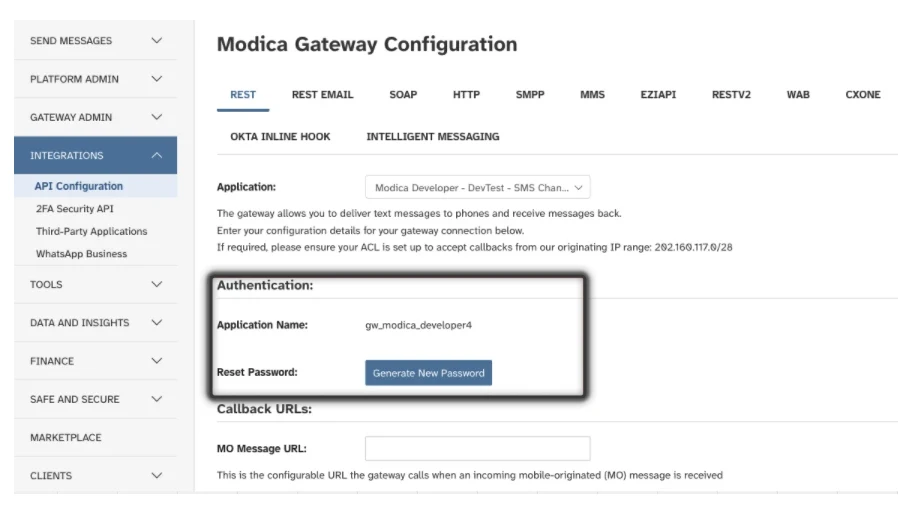
Your Modica application name and password are available in the Modica platform under Integrations > API Configuration.
Visit omni.modicagroup.com/gateway/api_config/rest or contact support@modicagroup.com if you need access.- Click Save.
Callback URLs are not required for operation of the HubSpot integration.
Callback URLs may be added if for example, you want to get return SMS handling via other connectors like Zapier / or for external ingestion of DLRs
-
You will see the message: “Credentials received. Please refresh this page in a few moments to confirm they were verified successfully.”
-
Wait approximately 30 seconds and refresh the page. If your credentials are valid you will see a green confirmation message: “Modica credentials are configured (Application: your-application-name). Enter new values below to update them.”
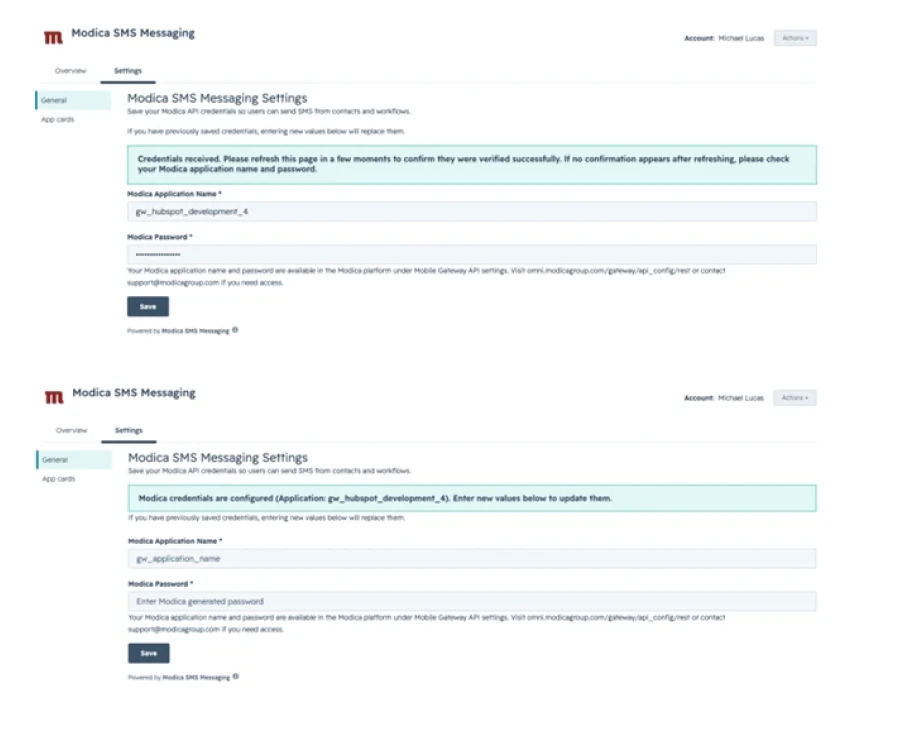
Note: If no confirmation appears after refreshing, your credentials could not be verified. Please check your Modica application name and password and try again.
SMS Action Configuration
SMS Action from Workflows
-
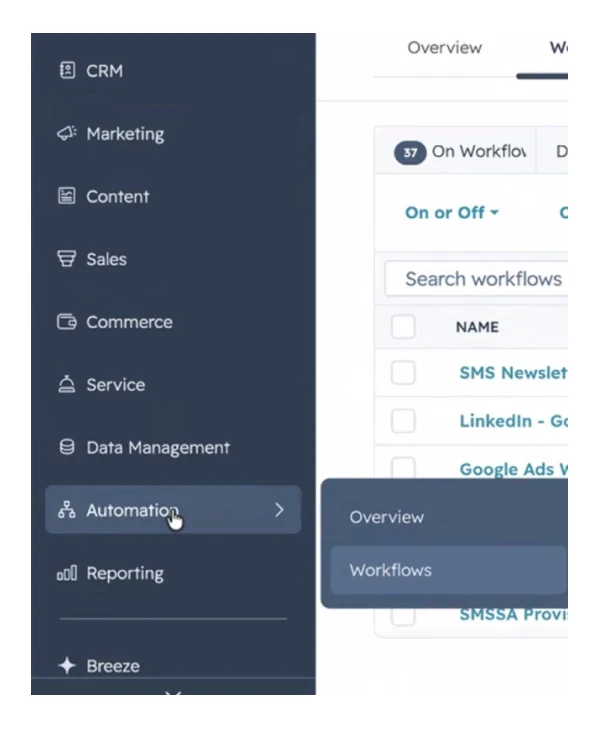
Go to Automation → Workflows in HubSpot.
-
Create new workflow (or edit existing). Click the + button to add a new action.
-
Choose the trigger in your workflow
-
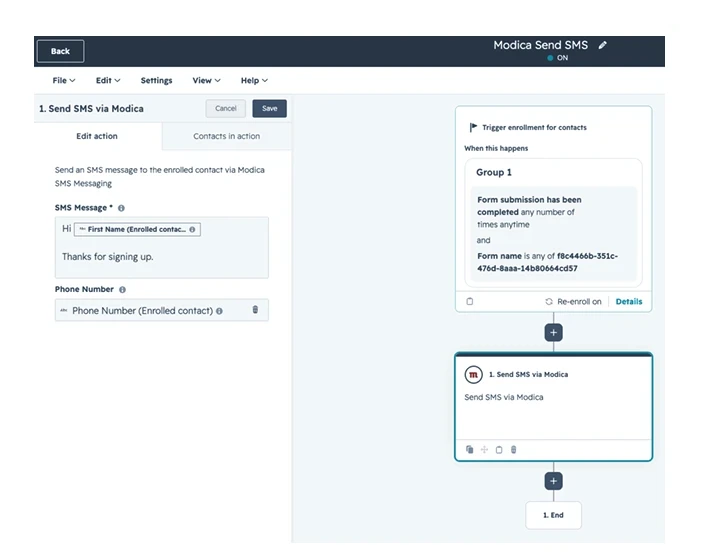
Search for Send SMS via Modica in the action search panel and select it.
-
Configure the action:
-
SMS Message - enter the message text you want to send. You can also use HubSpot personalisation tokens to include contact-specific information.
-
Phone Number - map this field to the contact’s Phone Number or Mobile Phone Number property using the dropdown.
-
-
Click Save to add the action to your workflow.
-
When the workflow enrolls a contact and reaches this action, an SMS will automatically be sent to that contact’s mapped phone number via Modica.
Note: The app must be configured with valid Modica credentials in the Settings page before workflow actions will send successfully. If credentials are not configured, the workflow action will return a failure status in the workflow history.
SMS Action from Contacts
You can send SMS messages directly from any HubSpot Contact record.
-
Navigate to any Contact record in HubSpot.
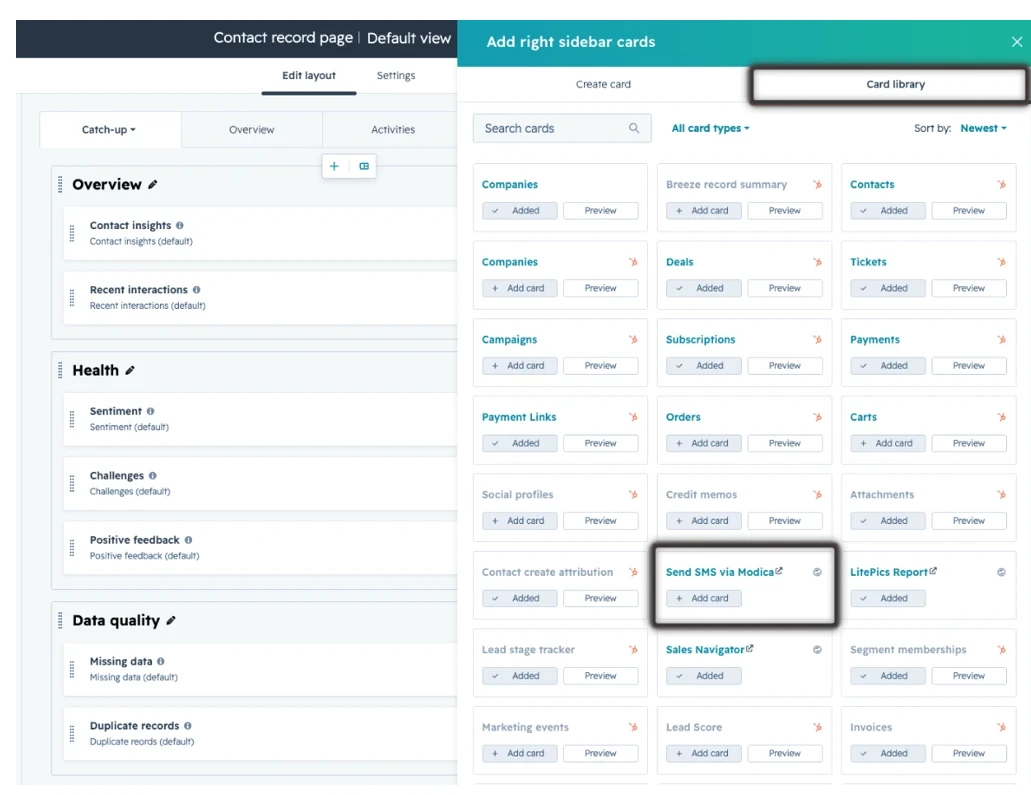
- (if required): the relevant Card needs to be added to your ‘Contact View’ after logging in.
To set the view, this only needs to be done once, and is started by using the Settings cog on the top right hand side when viewing any Contact.
- From the Settings, you can then use the ‘Card Library’ to add any necessary Cards, with ‘Send SMS via Modica’ listed as an option highlighted below - this can be added and then moves to any order in the list:
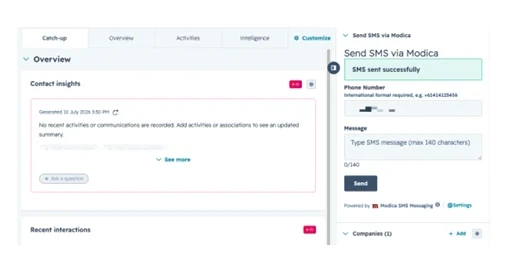
- Once saved and added, you will then see this card on all Contacts going forward, allowing you to SMS directly from the Contact, pulling their MobileNumber into the card automatically
-
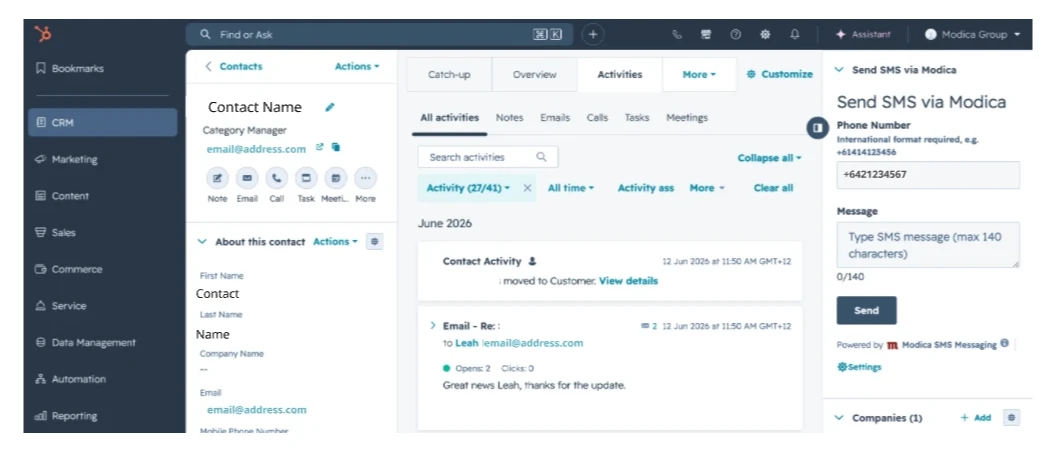
The Send SMS via Modica frame can be found to the right of the Activities frame. If you do not see it, click Add cards at the bottom of the sidebar and add it to your view.
-
The Phone Number field will automatically pre-populate with the contact’s phone number from their HubSpot record. You can edit this if needed. Phone numbers must be in international format - for example +6421123456 for New Zealand or +61414123456 for Australia.
-
Enter your message in the SMS Message field. Messages are limited to 140 characters. A character counter is shown below the field.
-
Click Send! You will see a confirmation message: “SMS sent successfully.”
Updating Your Modica Credentials
If you need to update your Modica API credentials at any time:
-
Go to Settings → Integrations → Connected Apps → Modica SMS Messaging → Settings.
-
Enter your new Modica Application Name and Password.
-
Click Save. Your new credentials will replace the previous ones.
Uninstall the App
Uninstalling Modica SMS Messaging will remove the app from your HubSpot account.
Your Modica credentials will no longer be accessible from HubSpot. No contact data is deleted from HubSpot when the app is uninstalled.
-
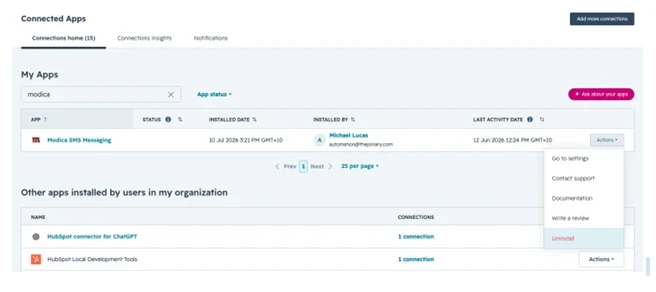
Go to Settings → Integrations → Connected Apps.
-
Find Modica SMS Messaging and click the Actions dropdown.
-
Select Uninstall.
-
Confirm the uninstall when prompted.
FAQ
1. I have HubSpot, but can't find the connector in the Marketplace?
The Starter Customer Platform does not natively support SMS integration through workflows.
For advanced workflow extensions and the ability to trigger actions like sending SMS via external providers (Modica), the minimum package they will need is the Professional Customer Platform.
This package supports workflow extensions that can connect to other tools or custom applications, which would allow you to integrate your SMS provider for sending messages and reminders.
Contact HubSpot to upgrade to Marketing Hub Professional or Enterprise subscriptions along with the Marketing SMS add-on.